.svg)

.svg)
.svg)
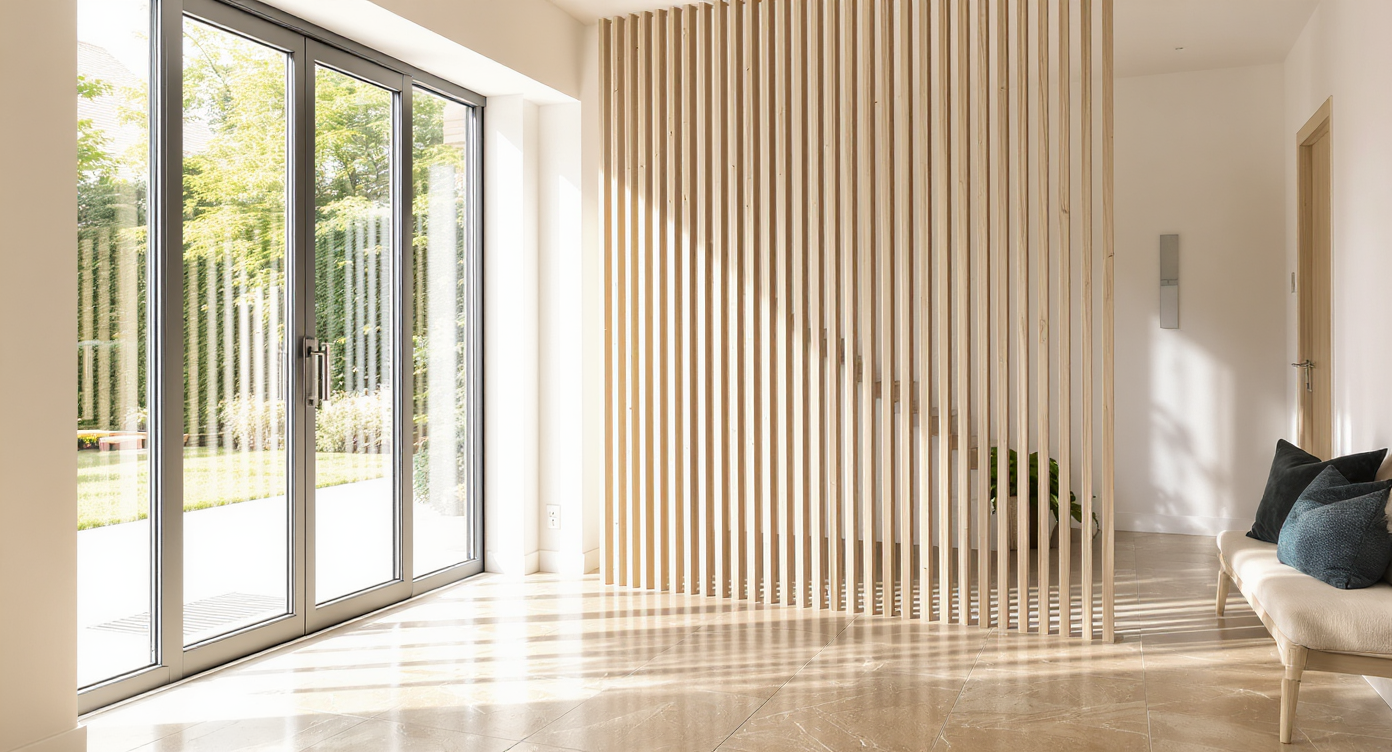
TL;DR
Add Anything in ReimagineHome.ai is an AI room editor that lets you place dividers, shelving, or glass panels into your entryway photo so you can compare options without demolition. It’s the fastest way to explore ai redesign my room ideas when a solid half-wall blocks your door swing or steals light. If you’re ready to try a lighter divider right now, open your photo in ReimagineHome.ai and test a few concepts side by side.
Why This Entryway Wall Isn’t Helping Your Space

Easily preview different entryway dividers in your own space using AI-driven photo overlays.
Add Anything is an AI interior design tool that places new objects — like slat screens, bookcase dividers, or frosted glass panels — into your actual photo. It’s powerful for tight entryways because you can see privacy solutions that keep light and door clearance before you build.
- Results first: Compare slatted wood, fluted or textured glass, open shelving, and slim mudroom cabinetry in the same shot.
- Realism: Accurate scale, perspective, lighting, and shadows anchor each added element to your room.
- Speed: Generate multiple variants in minutes; iterate until it feels right.
- Cost control: Avoid rework from overbuilt walls; commit only after you love the look.
- Workflow: Upload a phone photo, add a divider, refine, then export for a contractor brief.
- ROI: Better flow and a friendlier first impression — without weeks of second-guessing.
- Peace of mind: Rehearse the space visually, then build once.
If you already have a tricky entryway photo, upload it to ReimagineHome.ai and try a lighter divider while you read.
Why This Visual Problem Hurts More Than You Think

Solid partitions near doors reduce natural light and make entryways feel smaller and less welcoming.
Solid partitions near an exterior door often make the entry feel smaller, block natural light, and restrict the door to a tight 90° swing.
Here’s how that shows up day to day: you get a cramped first step inside, fewer places to set down a bag, and a constant risk of the door hitting a slab. A visually heavy half-wall also steals brightness from the living area and makes the whole open plan feel interrupted. Guests sense it immediately — the entry feels like a dead end, not a welcome.
Functionally, that also means tougher furniture moves, narrower pathways to the bedroom, and a constant temptation to “decorate around the problem” instead of solving it. The good news: the privacy you wanted is still achievable with lighter, semi-open elements that keep the air and light moving.
Anecdote
That perfect but awkward entry: the door hits a chunky half-wall, the hall behind feels pinched, and you start shopping for decor to soften it. One pass with AI and a slender slat screen with a bench solves privacy and flow — no more dodging the door.
What “Add Anything” Actually Is (In Plain Language)
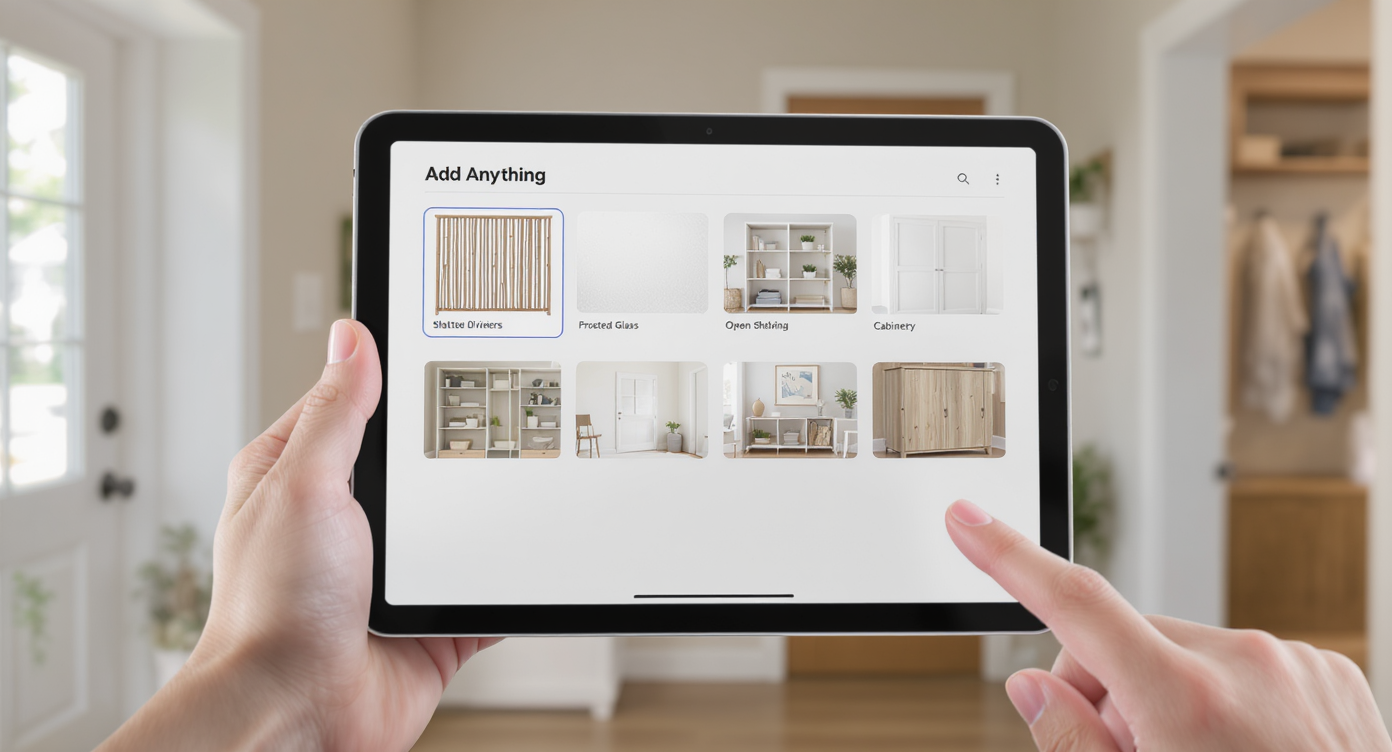
The 'Add Anything' tool lets you easily place and compare different divider designs on your entryway photo.
Add Anything is a guided, photo-based feature inside ReimagineHome.ai that lets you place new architectural and decor elements into your room image — think slatted room dividers, fluted glass screens, cube shelving, or a slim bench + coat rail combo.
You start with a single interior photo. The tool aligns new objects to your camera angle, adds realistic shadows and reflections, and returns a high-resolution image you can share with your contractor or family. For entryways, it’s ideal for exploring semi-permeable privacy options that don’t choke the door swing.
To try it on your space, open ReimagineHome.ai’s Add Anything tool and choose from divider concepts or describe your own: “mid-century wood slat screen,” “frosted glass panel with black frame,” “open bookcase divider with lower cabinet,” or “mudroom locker with bench.”
How “Add Anything” Works Step by Step
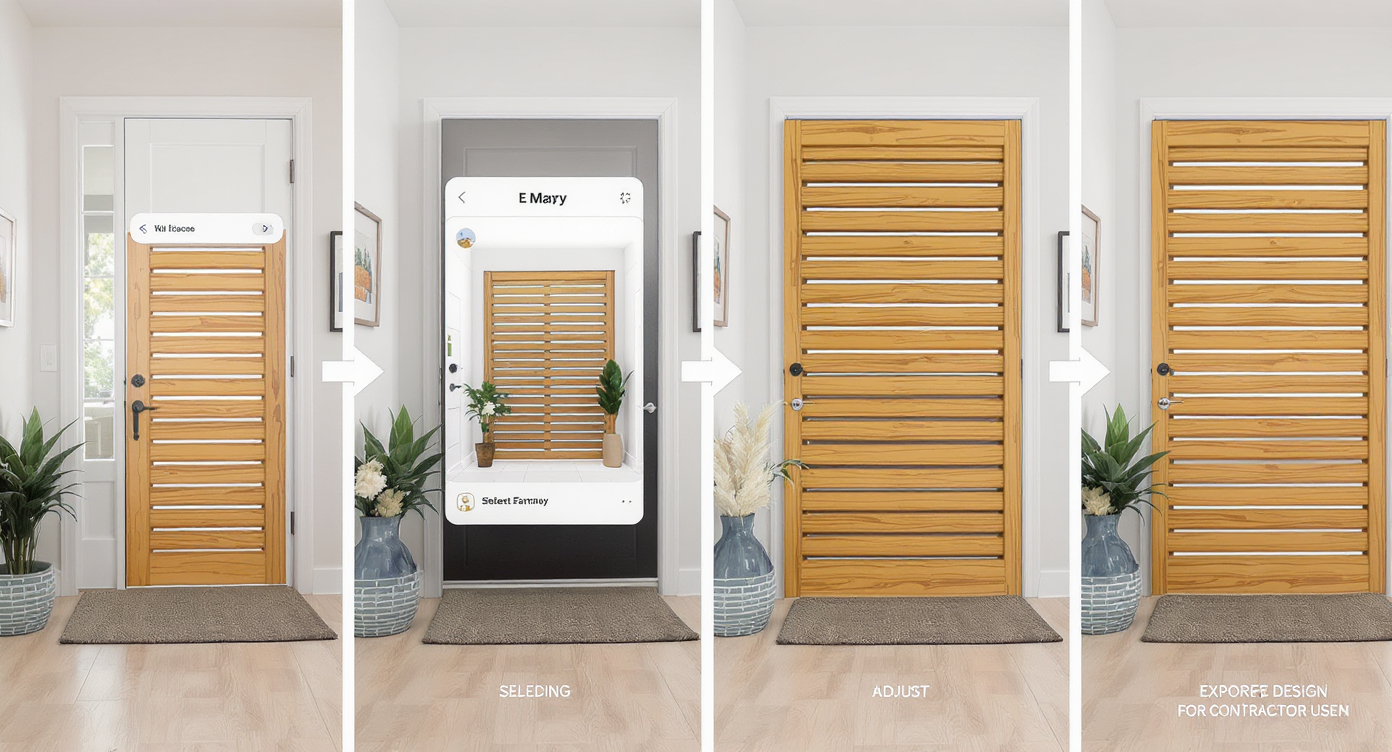
Follow clear steps from photo choice to finalized design with real-time preview and export.
Great results come from a clear photo and a simple plan.
- 1) Choose the right photo: Stand back to include the door, the contested wall area, and a peek into the adjacent space. Horizontal images around 2500–4000 px wide work best.
- 2) Upload to ReimagineHome.ai: Start a new project and select Add Anything.
- 3) If needed, clear the mistake first: If a heavy half-wall is already there, use its clutter and object removal tool to digitally remove the slab so you can audition open solutions on a blank canvas.
- 4) Describe the divider: Name the style, material, and opacity you want — “vertical oak slats, 2-inch spacing,” “fluted glass panel in slim black aluminum frame,” or “white built-in shelves with closed base drawers.”
- 5) Generate and refine: Review scale and door clearance. Try two or three pattern densities (wider gaps let light pass; tighter spacing adds privacy).
- 6) Export and share: Download for your contractor or to align the household on one direction. Save alternates if you want quotes for option A vs. B.
Constraint to note: strong side light and glossy floors can reveal unrealistic reflections if you push materials too far. Keep finishes similar to the rest of your home for seamless realism.
Tips and Tricks for More Realistic Results
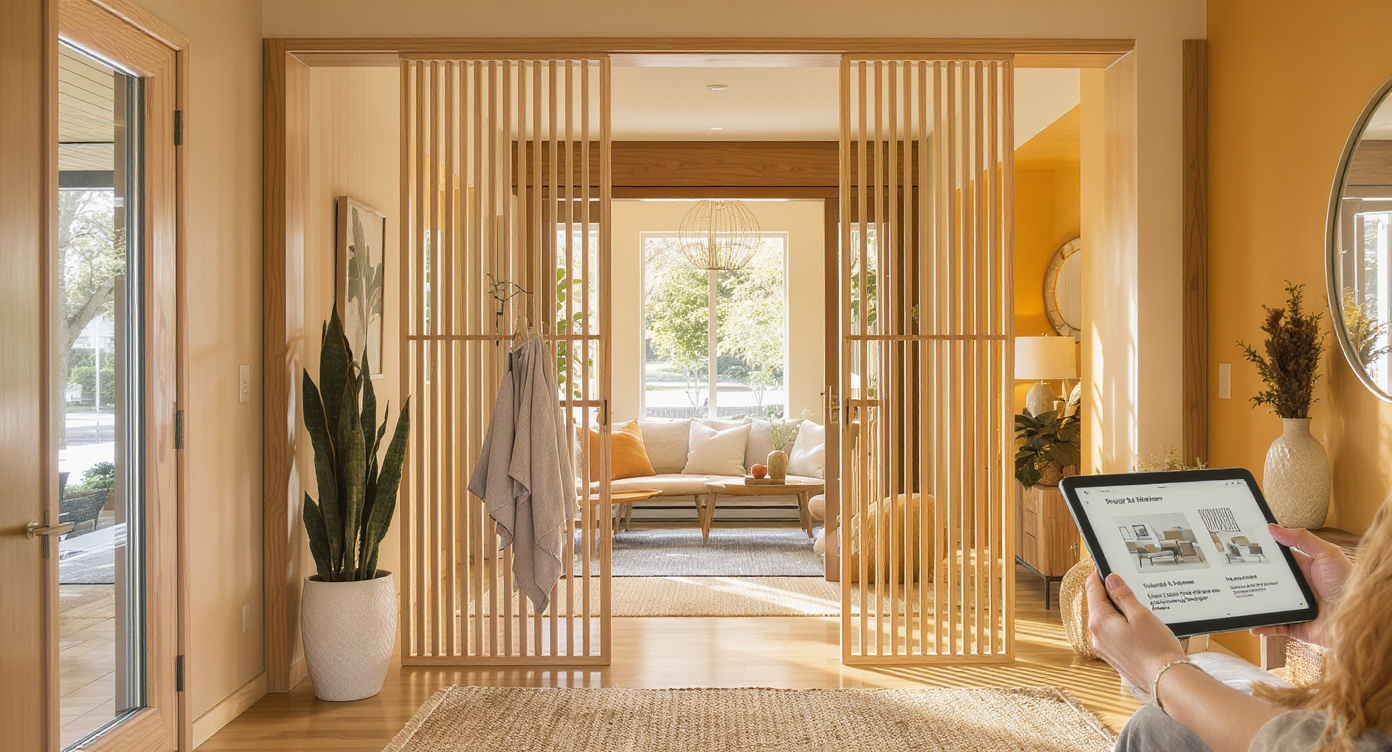
Match divider materials, scale, and lighting to your space for the most authentic, realistic results.
Realism improves dramatically when new elements match your home’s proportions, light, and materials.
- Scale to door height: Dividers should align near the top of the door frame or go full-height; awkward mid-height screens feel like obstacles.
- Respect the swing: Leave visual and physical space so the front door can open ~110° without hitting anything. If your space is very tight, consider a thinner framed glass panel.
- Mind the wood tones: If you’re installing bamboo floors later, audition both matching and contrasting slat tones. Lighter woods feel airy; darker woods add definition.
- Let light travel: Slat spacing of 1.5–3 inches keeps privacy while preserving airflow and daylight. Fluted or textured glass obscures views but glows beautifully.
- Anchor with function: A bench, shoe drawer, or small console on the living side turns a divider into an entry station you’ll use daily.
- Test wall color too: If the surrounding walls are changing, preview them with Surface Restyling to recolor walls and trim so your divider tone harmonizes.
- Keep it plausible: Use materials and styles that fit your architecture and region so the final build matches what you approved.
Visualization Scenario
Upload the current entryway photo, erase the slab, then add a floor-to-ceiling oak slat divider with 2-inch spacing and a 48-inch bench on the living side. Generate alternates with fluted glass and a white built-in bookcase to compare privacy vs. light.
FAQ
Can AI add a realistic room divider or glass panel to my entryway photo?
Yes. Add Anything places slat screens, shelving, or glass panels into your image with correct perspective and shadows so you can judge scale, light, and privacy before building.
How do I remove an existing half-wall in the photo first?
Use ReimagineHome.ai’s clutter and object removal tool to erase the slab digitally, then add your preferred divider. This workflow is fast and keeps the focus on layout, not the mistake.
What resolution do I need for good results?
Upload clear, well-lit photos around 2500–4000 pixels on the long side. Higher resolution helps the AI align edges, textures, and light more convincingly.
Will AI-added dividers look the same in real life?
They’re visualization-accurate if you keep materials and proportions realistic. Share the image with your contractor to match dimensions and finishes closely.
Is this only for real estate photos, or can homeowners use it too?
Both. Agents use it for virtual staging-style clarity, and homeowners use it as home design AI to plan changes with less risk and more confidence.
Visualize Your Next Listing (or Project) Before You Commit
Seeing is deciding. Add Anything functions like a rehearsal for your home — an ai room designer that lets you try slatted wood, fluted glass, or open shelving until the entryway feels welcoming again. You’ll know exactly what to build, where to place it, and how it will read from the door.
Ready to replace a heavy half-wall with something lighter? Open your photo and audition dividers in ReimagineHome.ai’s Add Anything tool, or start from the homepage at ReimagineHome.ai. If you want broader layout ideas, this guide on visualizing smarter layouts with ReimagineHome.ai is a helpful companion.









.svg)


.png)