
TL;DR
ReimagineHome.ai’s Add Anything lets you place art, plants, lamps, bookshelves, and decor into a real room photo in minutes, so you can “ai decorate my room” and preview the look before spending a dollar. It’s fast, realistic, and perfect when you’ve finished the build but haven’t nailed the finishing touches. If you already have a space in mind, upload it to ReimagineHome.ai and test this on a real image while you read. For hands-on styling, open ReimagineHome.ai’s Add Anything tool.
Why Bare-Bones Rooms Make Decisions Harder Than They Should Be
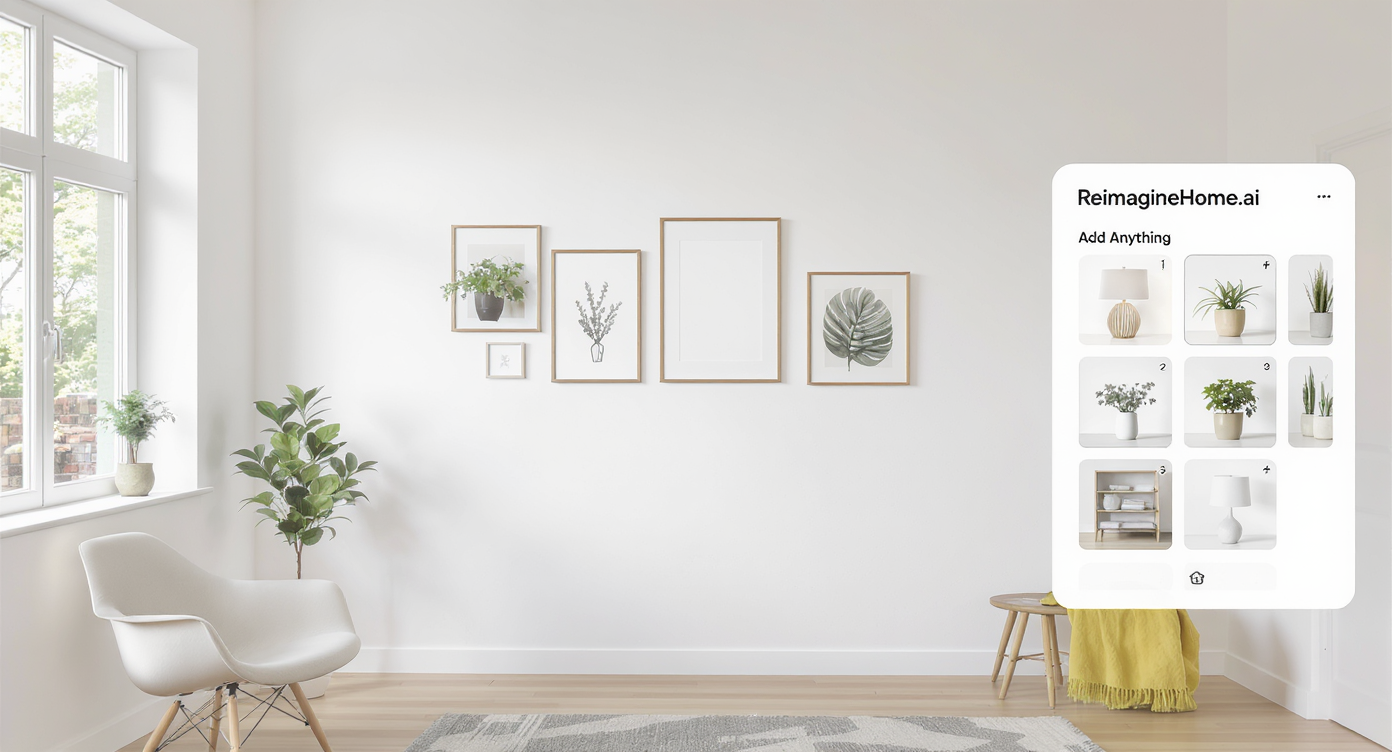
Upload your room photo to try decorating virtually—test ideas before buying anything in real life.
AI interior design from a photo is simple: you upload a room image, choose what you want to add (art, plants, lamps, shelving), and get a realistic preview of the space—no shopping cart, no returns, no regret. For first-time home designers, this is a fast way to test ideas and make confident choices.
- Results: See art, plants, lamps, shelves, and decor placed to scale on your real walls and surfaces.
- Realism: Lighting, shadows, and perspective align with your photo for a credible preview.
- Speed: Try five styles in five minutes; compare options side by side.
- Cost: Discover what works digitally before you buy; minimize returns and impulse purchases.
- Workflow: Upload, add items, refine, export; share with a partner or contractor.
- ROI: One avoided mis-purchase (wrong rug size, off-tone art) can pay for the entire process.
- Peace of mind: Commit only when you’ve seen it—and loved it—on your actual room.
If you already have a tricky corner or blank wall in mind, upload it to ReimagineHome.ai and experiment with the Add Anything decor tool as you read.
Why This Visual Problem Hurts More Than You Think
Small additions like rugs and plants anchor space and improve the feeling of home in any room.
Even simple additions—like a rug, plant, or canvas—can anchor scale and make features easier to read at a glance. Bare rooms confuse the eye: it’s hard to judge proportion, where to place a TV, or whether a large-format art piece will overwhelm a wall. That’s when second-guessing creeps in and decision timelines stretch.
In photo-driven decisions, emptiness can mislead. A tall fireplace looks austere without a mantle arrangement; a sleek kitchen can feel clinical without warmth, texture, or color. And when the view outside is seasonal (snow now, lush later), it’s even harder to choose tones and finishes that will live well year-round. The quickest fix is a believable preview—one that respects your architecture and lighting while showing just enough personality to make your choices obvious.
Anecdote
That perfect-but-empty great room with a soaring fireplace looks stunning in person—until you’re picking art and lamps. After dropping in a warm abstract canvas, a pair of linen-shade lamps, and a tall plant to echo the lake view, the room finally felt finished. The shopping list basically wrote itself.
What “Add Anything” Actually Is (In Plain Language)
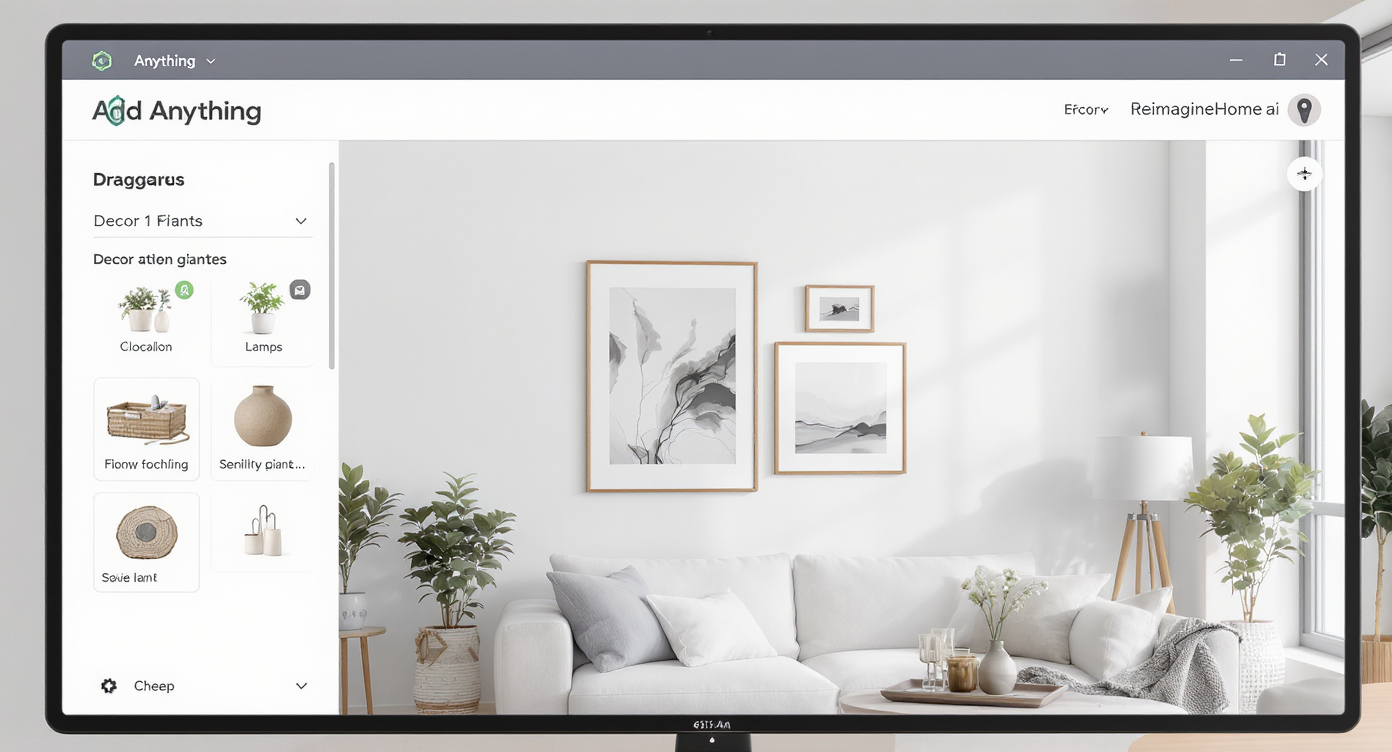
The “Add Anything” tool lets you place lifelike décor on your photos for instant, personalized previews.
“Add Anything” is a targeted AI room decorator inside ReimagineHome.ai that places realistic decor—art, plants, lamps, mirrors, shelves, or small furniture—into your existing room photo. You keep your layout, light, and architectural details; the tool simply layers in the pieces you’re considering so you can evaluate scale, color, and style in context.
Give it a good photo, tell it what you want ("large abstract over fireplace," "pair of sconces by the range," "olive tree in corner," "books and ceramics on shelves"), and it returns multiple, credible options. For hands-on styling and quick iteration, open ReimagineHome.ai’s Add Anything solution; it’s ideal when a room is built and furnished but under-styled—or when you’re moving in and want to set the tone before shopping.
How “Add Anything” Works Step by Step
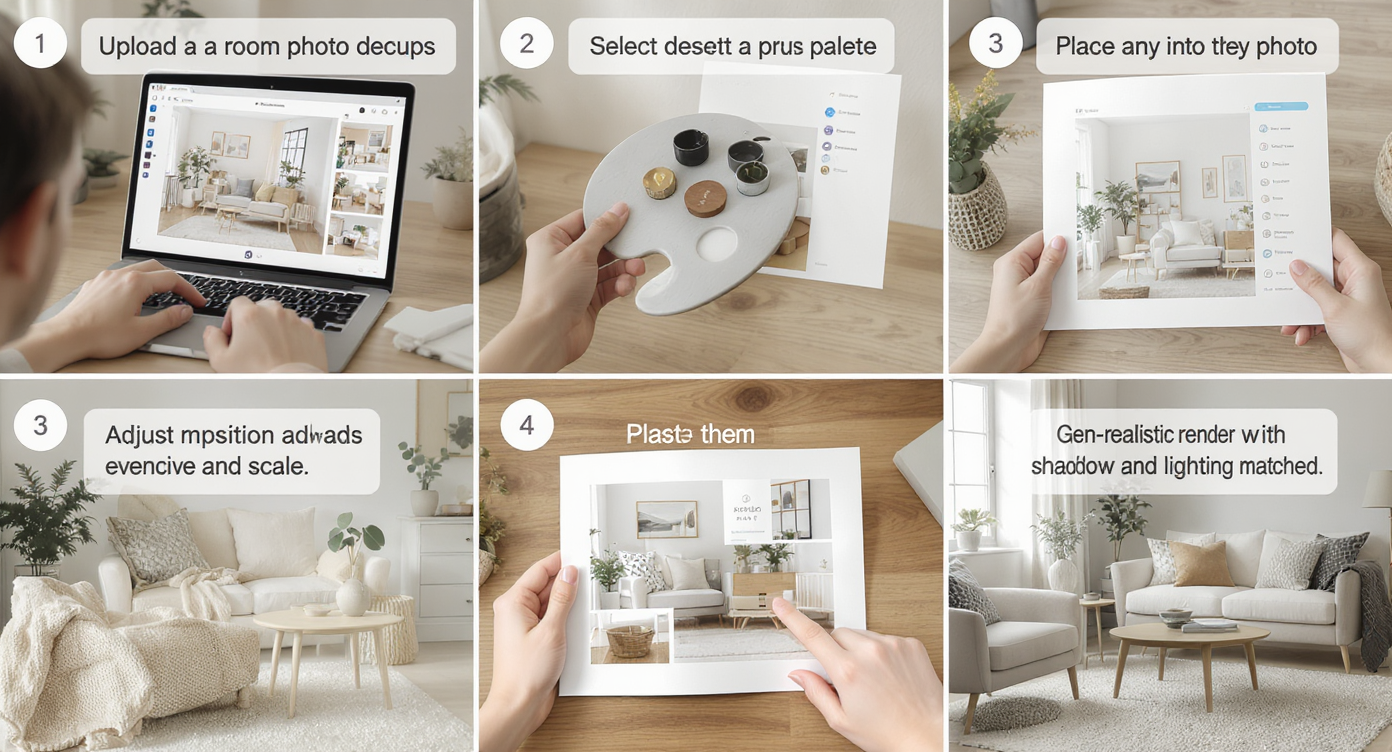
Follow simple steps to upload photos and add décor that looks real with AI-powered design previews.
Use these steps for the most accurate “ai room designer” results.
- Choose the right photo: Aim for natural light and a straight-on angle of the target wall or corner. Higher resolution (ideally 2000–3000 px on the long edge) improves realism.
- Upload to ReimagineHome.ai: Start a project and select Add Anything.
- Describe the additions clearly: e.g., “72-inch landscape canvas over fireplace in warm neutrals,” “two 24-inch table lamps on the island,” “tall ficus in woven basket by sliding doors.”
- Pick a style reference: Modern, warm minimal, rustic, coastal, mid-century—this helps the AI match your home’s language.
- Generate, compare, refine: Save two or three favorites. Adjust scale, color palette, or placement and regenerate.
- Reality check: Cross-verify rough dimensions (art width ≈ 2/3 of furniture width is a reliable rule of thumb).
- Export: Download full-resolution images for your mood board, partner review, or contractor notes; use them as a shopping blueprint.
Constraint to remember: if your source photo is dark, cluttered, or skewed, your preview will be less convincing. Clean the frame, turn on practicals, and take the photo at eye level.
Tips and Tricks for More Realistic Results
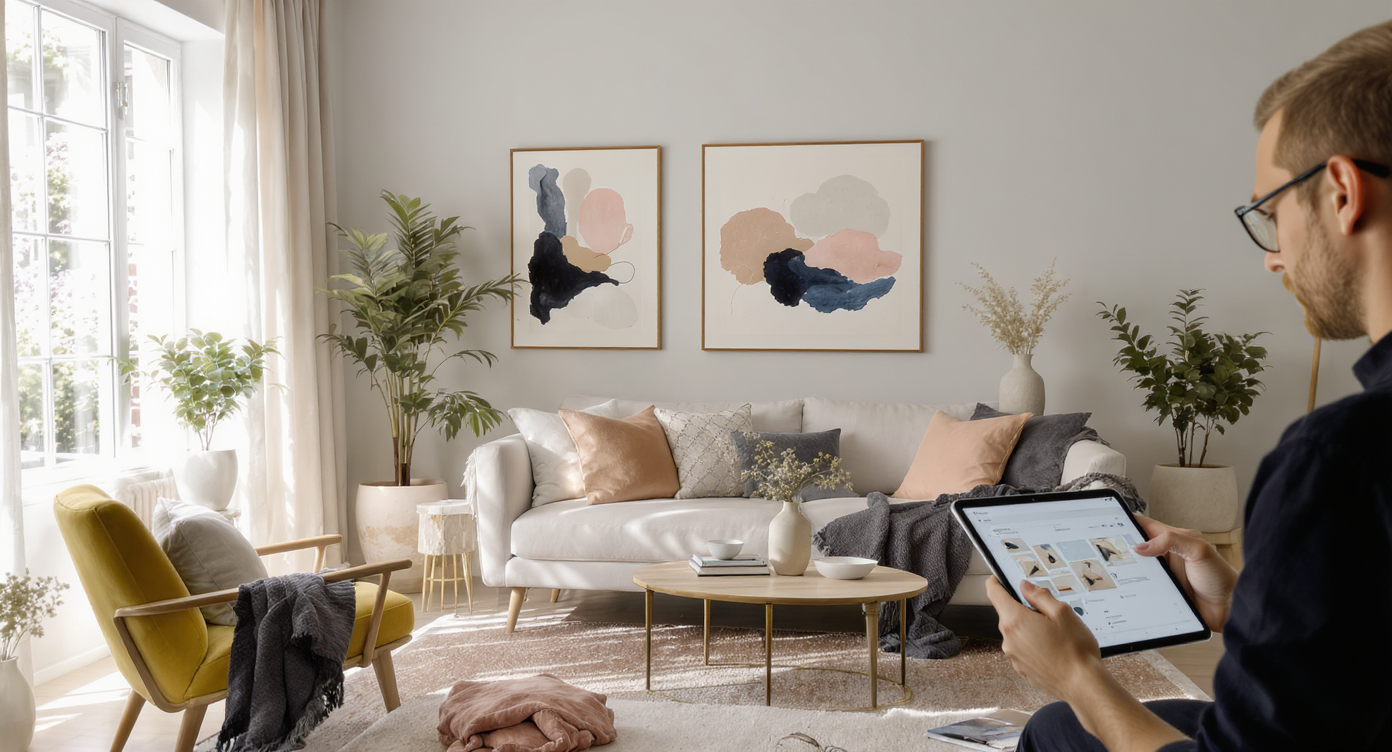
Tips for realistic previews: natural lighting, balanced scale, and thoughtful material choices bring designs alive.
Good inputs and grounded choices produce the most believable ai interior design previews.
- Match the light: Add items that make sense for the time of day in your photo; warm lamps at dusk, softer greens in low light, brighter textures in daylight.
- Scale carefully: For art above a mantle, start at ~2/3 the width of the mantle; for island pendants, keep visual weight balanced with counter size.
- Warm up functional zones: Kitchens read “cold” without texture. Try a wood bowl, a linen runner, a framed piece on the long wall, or a pair of sconces. If a wall color still feels off, preview a tone shift with ReimagineHome.ai’s Surface Restyling before you paint.
- Let the view be the art: If you’ve got a lake or treetop panorama, keep big pieces quiet and add soft greenery indoors to echo the outside.
- Edit first, then add: If an odd bracket, towel bar, or dated sconce distracts, clear it in seconds with ReimagineHome.ai’s clutter and object removal tool before you layer new decor.
- Sharpen the base photo: A quick pass through its image enhancement tool can lift shadows and color so added pieces blend convincingly.
- Stay plausible: Don’t add built-ins you won’t build, or art sizes that can’t fit. Use the preview to decide—then buy or install for real.
Visualization Scenario
Upload your great room at dusk, add a 60–72" landscape canvas over the fireplace, a pair of slim sconces on the feature wall, a low-profile olive tree near the glass doors, and a stack of books with a ceramic bowl on the console. Generate three style variations—warm minimal, modern rustic, and coastal—then compare which one best supports your view and beams.
FAQ
Can AI really add decor to my room photo realistically?
Yes. Because Add Anything respects your photo’s perspective and light, placed items look grounded and scaled. Good source photos yield the best results.
Is it okay to use AI-styled images in real estate listings?
Many markets allow virtually styled images when clearly disclosed. For shopping and planning at home, they’re ideal to avoid costly mistakes. When listing, follow local MLS rules.
What resolution do I need for the best ai room makeover?
Use clear, well-lit photos at 2000–3000 px on the long edge. Higher resolution improves edge blending and texture realism.
Can I specify exact decor—like “olive tree,” “linen shade,” or “abstract canvas”?
Yes. Describe the item, size, placement, and vibe. Add Anything excels when you give it clear prompts and a style direction.
How is this different from repainting or refacing in AI?
Add Anything places objects; repainting or material swaps are handled by ReimagineHome.ai’s Surface Restyling. Use both to test color plus decor together.
Visualize Your Next Listing (or Project) Before You Commit
Previewing decor on your own photo prevents “paint and purchase regret” and speeds up every decision. With Add Anything, you can try art over the fireplace without committing, test plants by the windows, experiment with lamps on the island, or balance a media wall—then shop with a plan instead of a hunch.
Ready to see your space come to life? Open ReimagineHome.ai’s Add Anything to style your actual room photo, or start from the home page at ReimagineHome.ai and build a full design workflow in minutes.