
TL;DR
Occupied to Vacant is an AI photo tool that removes clutter and objects from room photos to give you a clean, blank canvas. It’s ideal for busy, narrow spaces like long hallways where you’re debating a runner, closed storage, or a gallery wall. Try it on your real photo now with ReimagineHome.ai — it’s a fast way to test layouts and reduce decision fatigue. If you’re searching “how to remove clutter and objects from listing photos,” this is the simple, visual answer.
The Real Cost of Showing Rooms “As They Are” Online
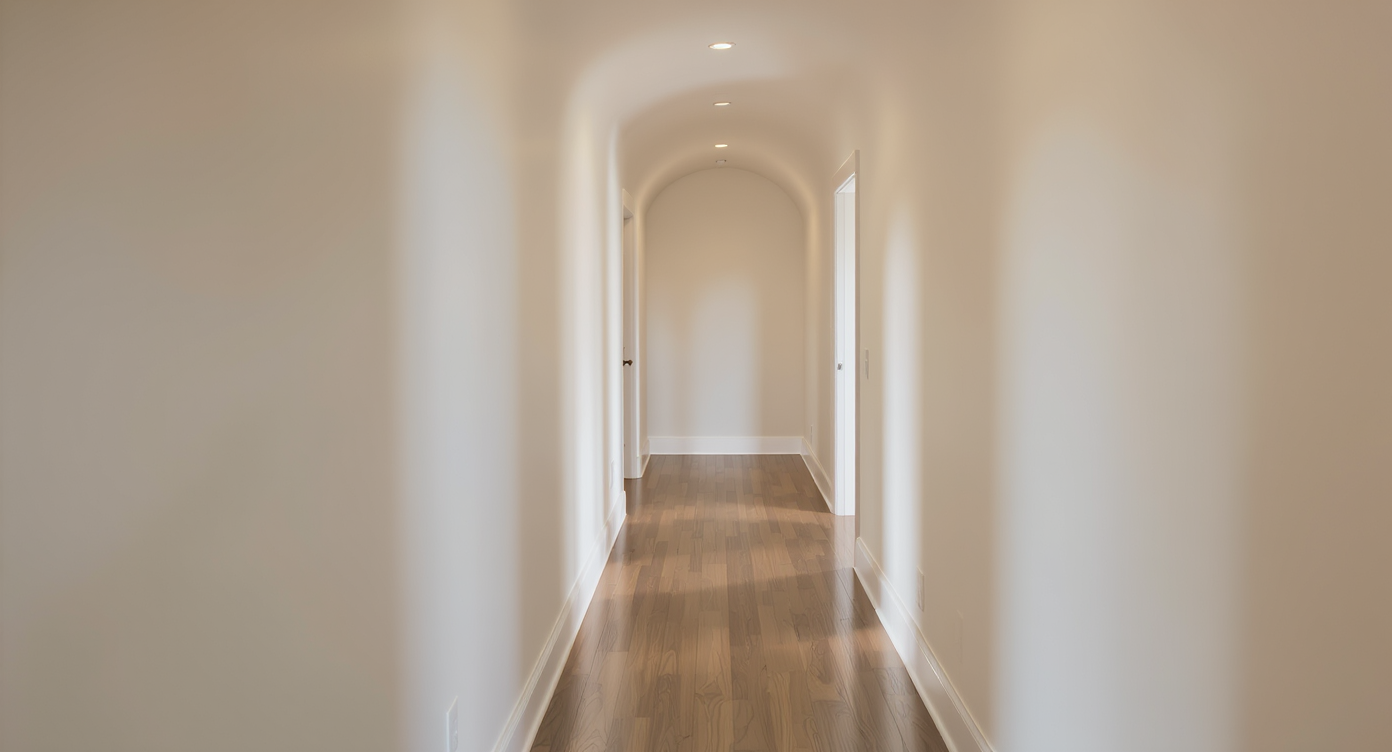
Calm, clutter-free hallway exemplifying the impact of digital decluttering tools like Occupied to Vacant.
Occupied to Vacant is an AI-powered clutter removal tool that turns a busy hallway photo into a calm, empty corridor in seconds. By clearing bins, bookcases, and overhangs digitally, you can judge scale, choose a runner, and plan storage that actually fits the walking zone.
- Results: Hallways look wider, calmer, and easier to navigate; you’ll know if a runner helps or adds visual noise.
- Realism: Textures, baseboards, and light are preserved so the “after” feels believable.
- Speed: Generate clean images in minutes, not days of moving boxes.
- Cost: Decide on storage and rugs with confidence before buying anything.
- Workflow: Use a single hallway photo to clear, iterate, and share options.
- ROI: Reduce wrong purchases, returns, and project indecision.
- Peace of mind: See the path, then pick the plan.
If you already have a tricky hallway photo in mind, upload it to ReimagineHome.ai and test this solution on a real image while you read.
Why This Visual Problem Hurts More Than You Think
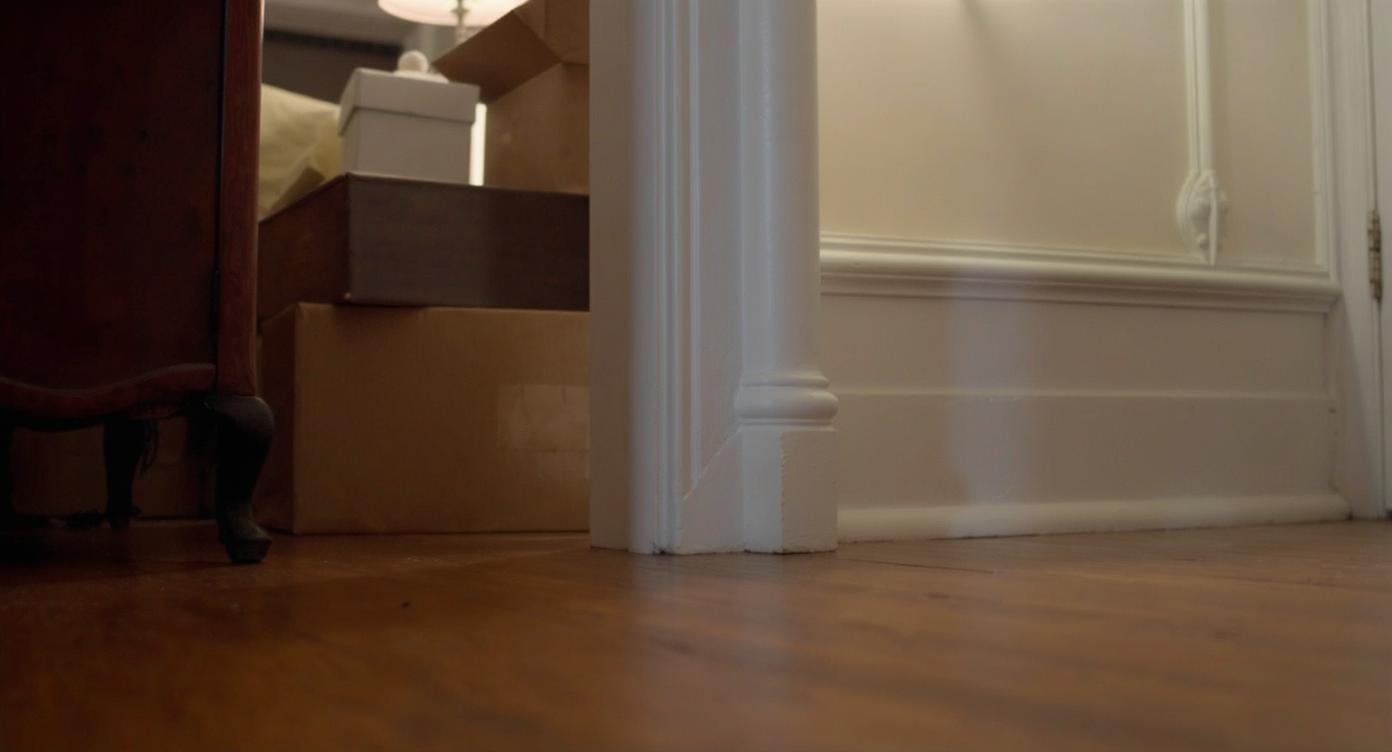
Clutter masking elegant hallway features diminishes spatial appeal and comfort.
Even simple clutter removal can make key features — like flooring, trim lines, arches, and sconces — easier to read at a glance.
In long, tight corridors, visual overhangs (totes jutting past shelf edges, stacked bins, loose tools) compress the sightline. A runner on top of that can tip the space from cozy to chaotic. Clearing the photo first shows whether you should invest in a long wool runner, break it into multiples, or skip a rug altogether. It also reveals where symmetry matters: a door off-center, a barrel ceiling, and a gallery wall look purposeful once the “stuff” stops competing.
Agents often find that buyers scroll past “busy” entry photos faster; homeowners feel the same fatigue in real life. A quick digital reset reduces decision noise, helps you see the corridor’s true width, and builds confidence before you reorganize, donate, or design built-in storage.
Anecdote
That perfect-but-busy hallway — tubs jutting past shelf edges, a dustpan on the wall — somehow made the beautiful arch and ceiling vanish. One “empty your space” render and the corridor finally breathed; the runner decision went from impossible to obvious.
What Occupied to Vacant Actually Is (In Plain Language)
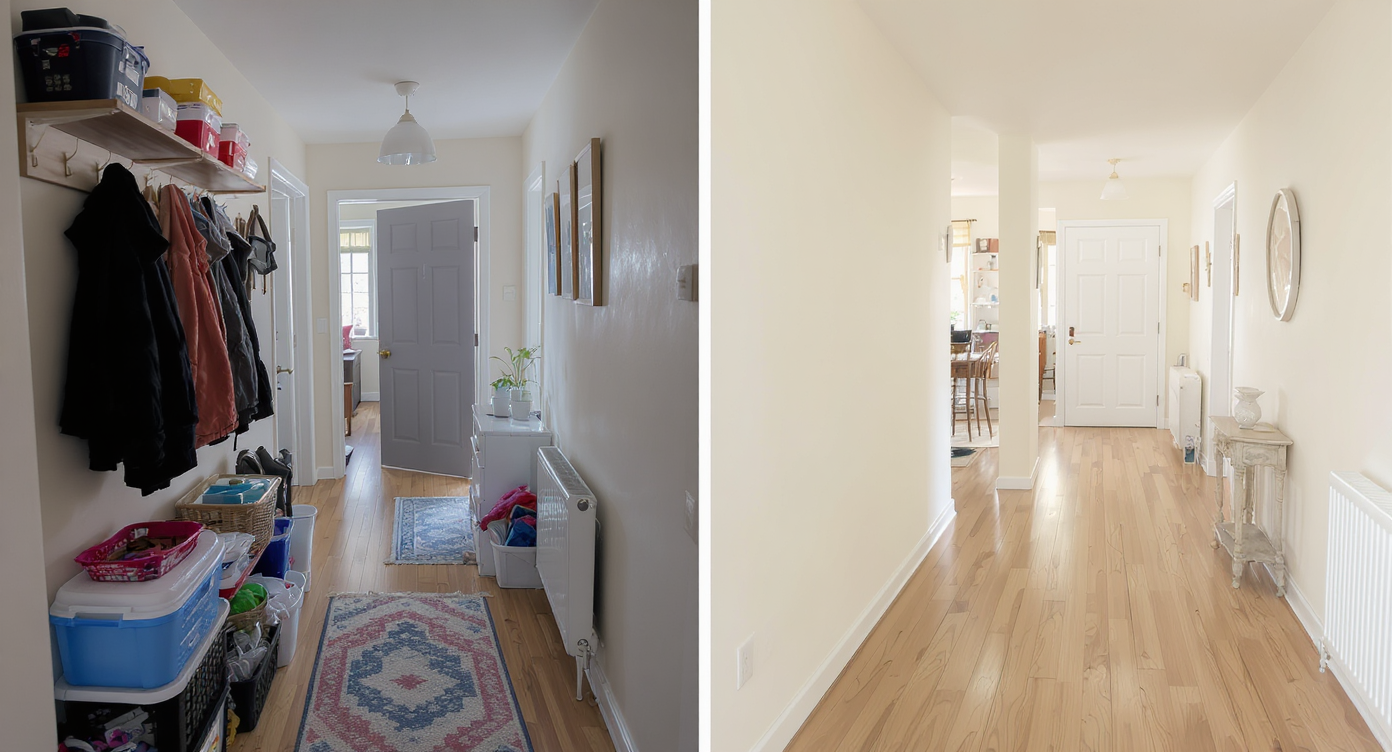
Occupied to Vacant tool helps visualize hallways transformed from cluttered to empty with realistic lighting.
Occupied to Vacant is an AI interior tool that removes furniture, boxes, and small items from a photo to create a clean, believable blank-canvas image. You upload one hallway or room photo; the output is a clutter-free version that keeps the architecture intact so you can evaluate scale, flow, and lighting.
Use it when you have a tight space, visible storage, or you’re debating a runner length. For a deeper design pass, you can pair it with ReimagineHome.ai’s virtual staging solution to add a runner, a slim console, or closed cabinets after clearing. But the first win is clarity: a hallway without the bins, bags, and overhangs.
To try it now, head to ReimagineHome.ai’s Occupied to Vacant tool. It’s built for quick, realistic clutter removal so you can plan with a clean slate.
How Occupied to Vacant Works Step by Step
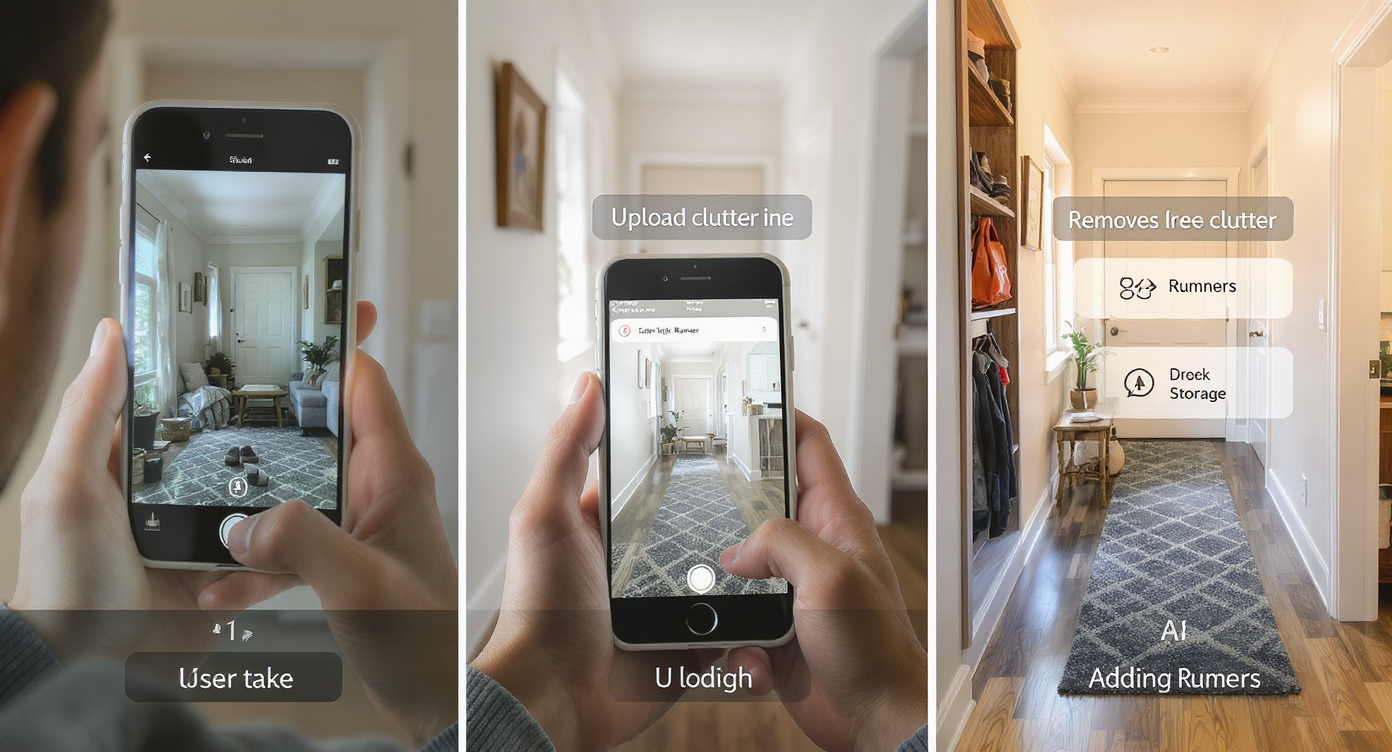
How Occupied to Vacant transforms cluttered hallway photos into clean, staged design options step by step.
Good source photos produce the best results — aim for a straight-on shot with the long edge around 2500–3500 pixels.
- Choose the right photo(s): Stand centered in the hall and shoot at chest height; include floor and baseboards so the AI can rebuild edges cleanly.
- Upload to ReimagineHome.ai: Start a new project and select Occupied to Vacant.
- Mark what to remove: Highlight storage bins, open shelving, shoes, hooks — anything you’d like cleared.
- Generate and review: Check corners, baseboards, and door thresholds for realism.
- Iterate lightly: Regenerate if any tiny remnants remain; keep edits plausible to the architecture.
- Export: Download high-res for planning, sharing with family, or showing a contractor/stager.
Constraint to know: avoid extreme wide-angle distortion if you can. Natural angles help maintain wall lines and keep the after image believable.
Tips and Tricks for More Realistic Results
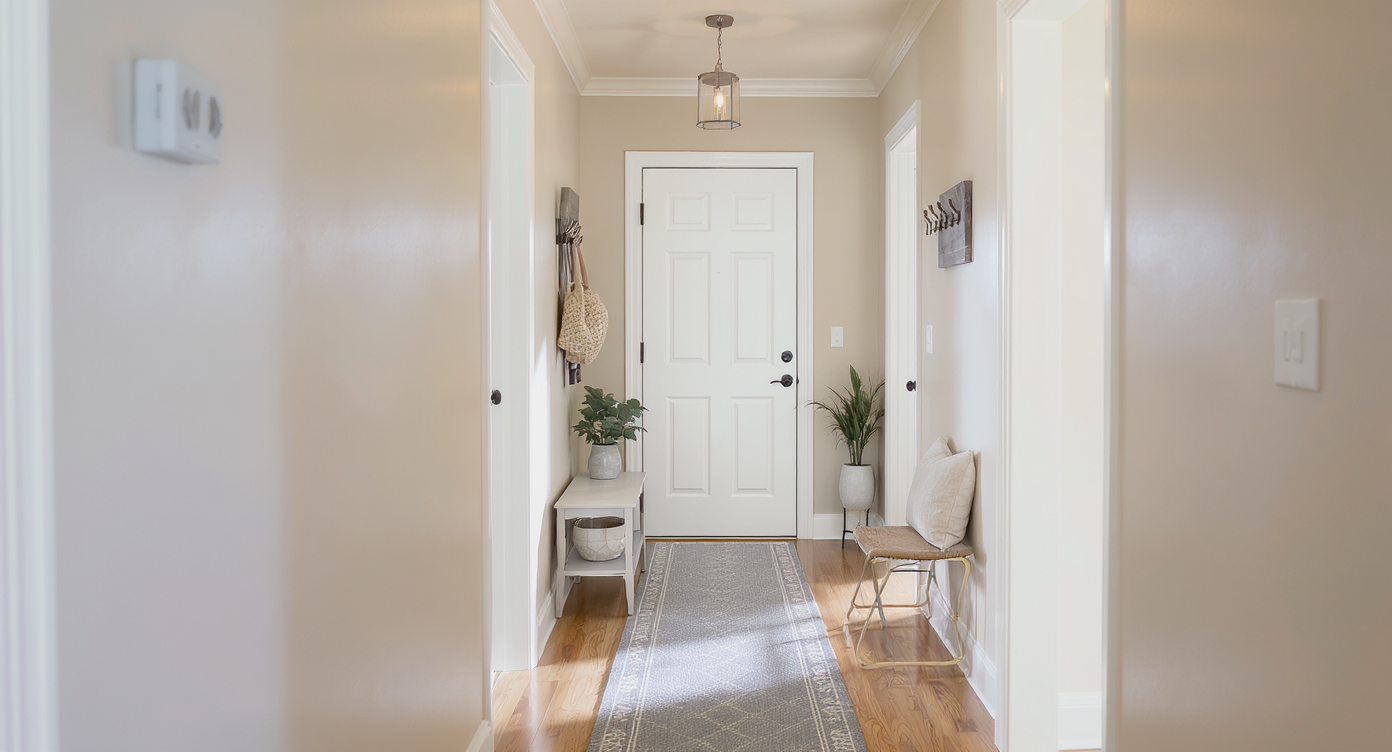
Staging after clearing emphasizes balance: choose minimal, fitting elements to maintain spaciousness.
A simple rule of thumb: clear first, then stage only what the space can comfortably carry.
- Keep walk width honest: If your hallway is 5’3” at its widest and 4’4” near shelves, aim for a 36–42” clear path in your plan. The empty photo will reveal choke points.
- Test runner math visually: After you clear, mock different runner lengths by pairing Occupied to Vacant with AI virtual staging. Try one long runner vs. two shorter ones and align ends with door thresholds.
- Close it up: If open storage is nonnegotiable, preview swapping shelves for closed units using Swap Furniture & Objects to maintain symmetry and reduce visual noise.
- Respect the architecture: Keep sconces, arches, and trim lines visible. Your runner pattern should complement, not compete.
- Color discipline: With bold wall colors (think citrus or jewel tones), test neutral rug fields with a tighter motif to calm the sightline.
- Mind thresholds: Leave 2–4 inches from rug edge to wall and align the runner with doorways for a professional look.
- Share to decide: One clean image often ends stalemates among household decision-makers faster than mood boards.
Visualization Scenario
Upload your long, narrow corridor; clear the bins and open shelves; test one long runner vs. two shorter ones; add a slim coat tree by the door; confirm you still have 36–42 inches of walk space; save the look you love before buying anything.
FAQ
Can AI really remove clutter and objects cleanly from a room photo?
Yes. Occupied to Vacant uses context-aware fills to preserve floors, baseboards, and light so the empty result looks natural. For best results, use a clear, well-lit photo and mark what you want removed precisely.
Is it okay to show edited photos to buyers or guests?
Use edited images for planning and concept approval, and label them as virtual for transparency. Many agents and homeowners rely on clutter removal to make decisions quickly before committing to changes.
How do I choose the right runner length digitally?
First clear the corridor with Occupied to Vacant. Then add a virtual rug via ReimagineHome.ai’s virtual staging to test one long runner vs. multiples and align with door thresholds.
What resolution do I need for good AI edits?
Use high-resolution photos — ideally 2500–3500 pixels on the long edge. Avoid heavy tilt or ultra-wide distortion to keep wall lines straight and realistic.
Can I preview closed storage instead of open shelves?
Yes. After clearing, use Swap Furniture & Objects to place slim, closed units that fit your walk path and style, then choose finishes you can actually source.
Visualize Your Next Listing (or Project) Before You Commit
Seeing is believing — and calming. Use Occupied to Vacant to strip a busy corridor down to its bones, then decide whether a runner adds warmth or just clutter. From there, virtually add a rug, a coat tree, or closed cabinetry to test the vibe without buying or moving a thing. When you can visualize the plan in minutes, you reserve your energy for the work that matters.
Start with a real photo of your space and clear it with ReimagineHome.ai’s Occupied to Vacant tool. If you want to layer in furnishings after, explore its AI virtual staging for rugs and storage ideas — all from one image.