.svg)

.svg)
.svg)
TL;DR
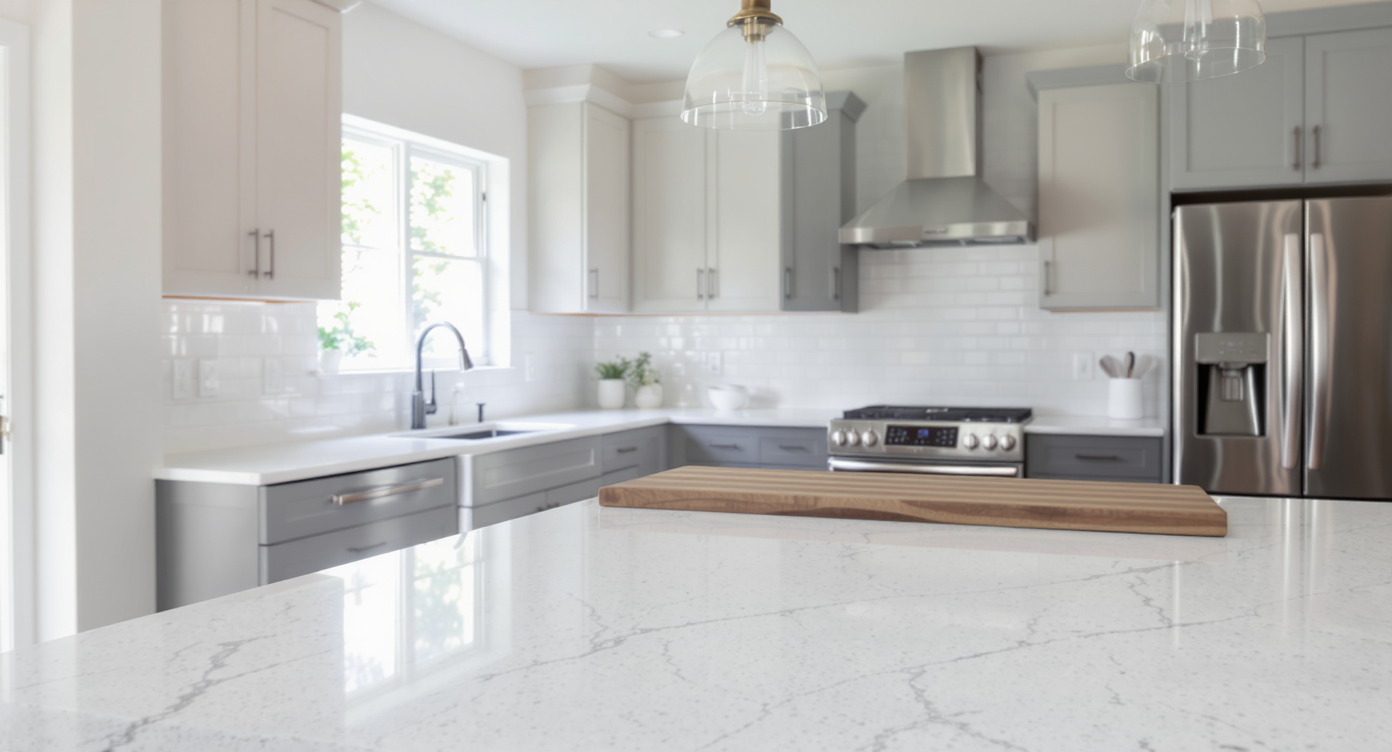
Surface Restyling in ReimagineHome.ai lets you digitally repaint and retexture counters, cabinets, walls, and backsplash from a photo, so you can preview combinations before you spend. If you’re wondering “counters or cabinets?” you can test both, side by side, including lighter quartz-look counters, creamy wall paint, or a soft blue/green tile—without committing. Try it now on a real image at ReimagineHome.ai and answer long-tail questions like how to digitally repaint walls before buying paint and how to see if a backsplash color will clash.
The Real Cost of Choosing Counters or Cabinets Without a Visual
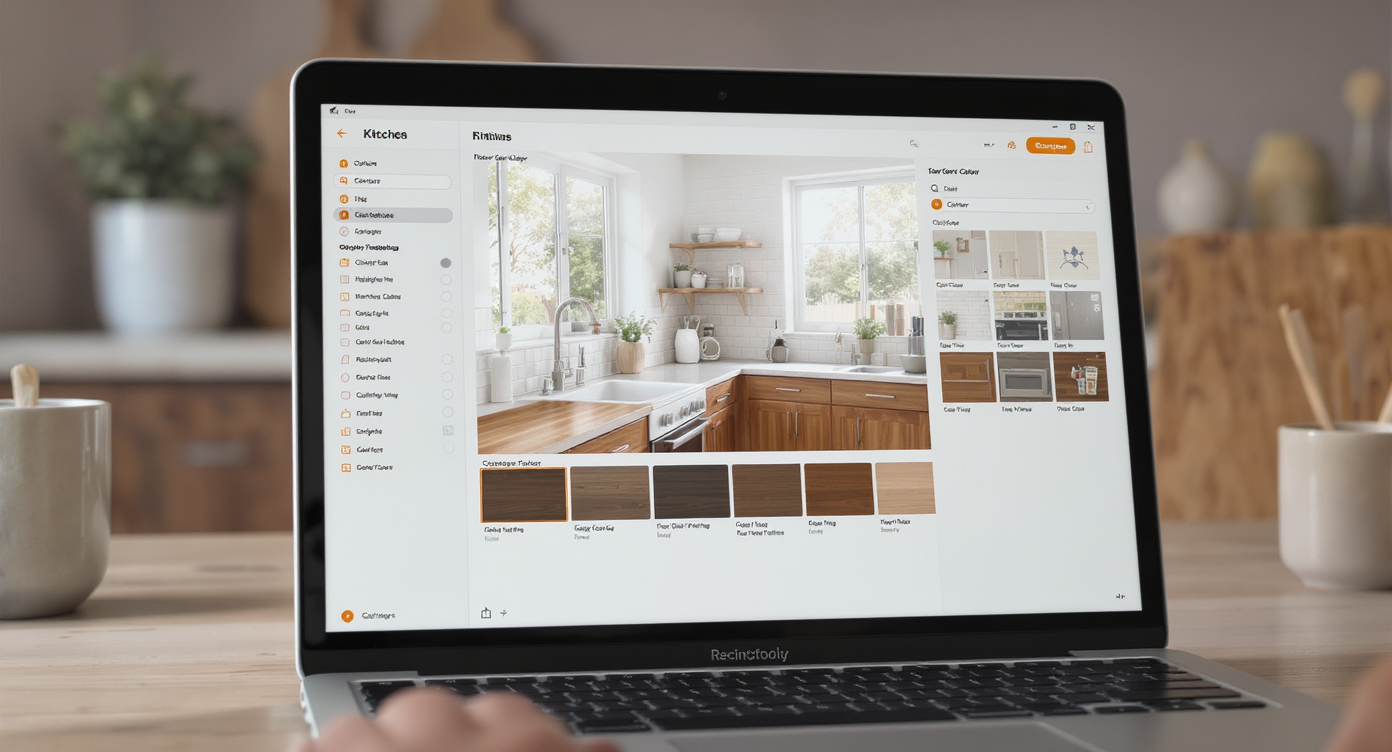
Surface Restyling lets you visualize kitchen updates quickly and easily from one photo.
Surface Restyling is an AI-powered way to recolor or retexture your kitchen surfaces—counters, cabinets, walls, and backsplash—from one photo. It’s a powerful fix when you can only change one thing now because you can see how each choice plays with what’s staying, then choose the option that brightens and modernizes without regret.
- Results: Quickly compare lighter countertops vs. new backsplash vs. painted walls to see what makes the biggest visual impact.
- Realism: Material textures, veining, grout lines, and wood grain render in place so edits feel believable.
- Speed: Upload a photo and generate options in minutes—no demo dust, no showroom marathons.
- Cost: Spend hundreds to decide, not thousands to discover you chose wrong.
- Workflow: Share before/after variations with a partner, agent, or contractor to align fast.
- ROI: Avoid rework; pick finishes you’ll love for years, not just at install.
- Peace of mind: See it first; buy once.
If you already have a tricky kitchen photo in mind, upload it to ReimagineHome.ai and test Surface Restyling while you read.
Why This Visual Decision Hurts More Than You Think
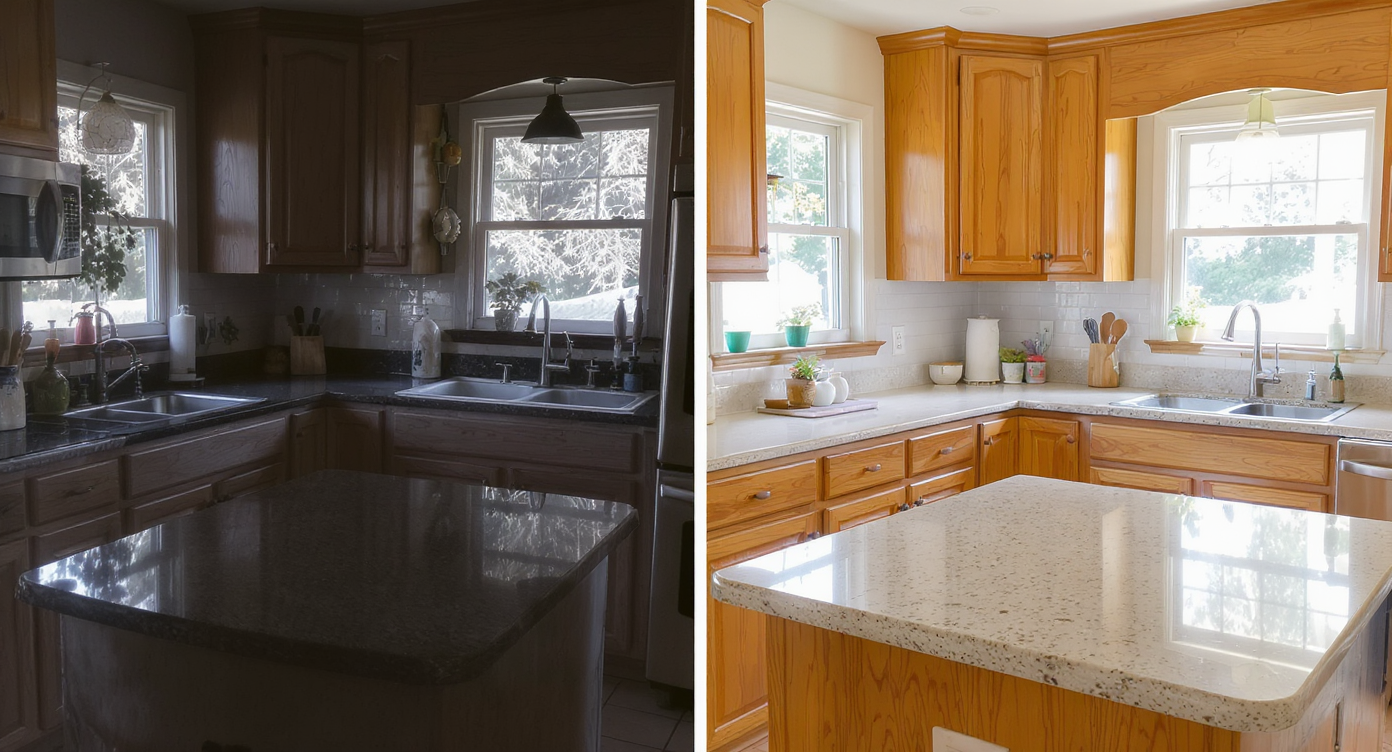
Avoid expensive 'paint regret' by previewing your kitchen surfaces with Surface Restyling.
Previewing color and material changes visually can prevent costly “paint regret” and stone selection mistakes.
Here’s the pattern professionals see: counters, cabinets, floor, and walls are all neutral—but they’re the same temperature, so the room reads flat or too beige. People rush to replace countertops, then discover the new slab clashes with warm cabinets or makes the room feel darker than expected. Others repaint cabinets first, only to realize the busy granite suddenly looks louder.
When you can only afford one major change, guessing is expensive. An AI interior design preview shows which single move buys the most contrast and cohesion right now—often a lighter, quieter counter, a modern backsplash in calming blue/green, or simply a creamy off-white paint that breaks up the sameness. You’ll also see how secondary updates (hardware, pendants, a runner) finish the story without touching the big-ticket items.
Anecdote
That “everything beige” kitchen: warm wood, warm floors, warm paint. The owner thought black granite was the only match—but didn’t want a dark cave. One Surface Restyling pass later, they saw how a quiet, light counter plus a green tile backsplash made the whole room feel fresher without touching the cabinets.
What Surface Restyling Actually Is (In Plain Language)
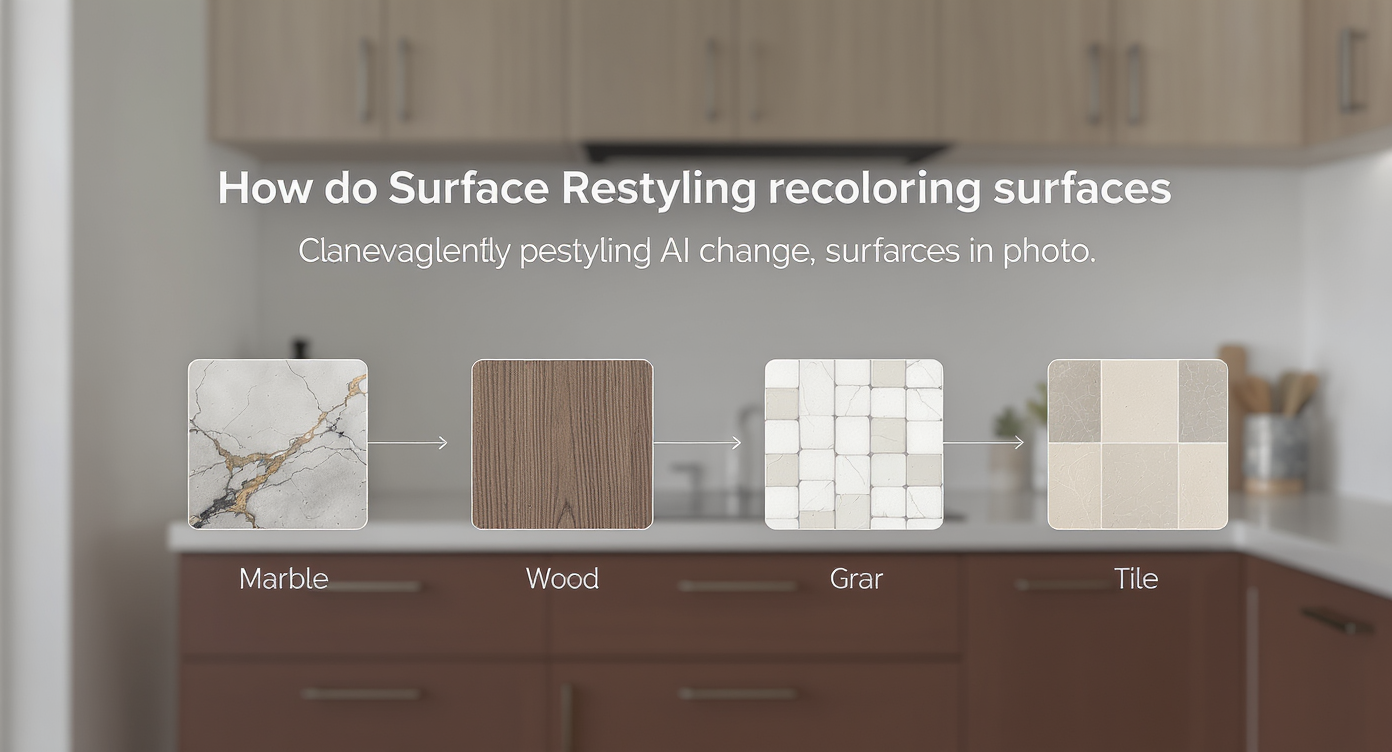
Surface Restyling uses AI to seamlessly recolor and retexture kitchen surfaces from your photo.
Surface Restyling is an AI tool that recolors or retextures specific surfaces in your room photo—cabinets, countertops, backsplash tile, walls, even flooring—so you can evaluate options in context.
You upload a kitchen image, tell the tool which surfaces to restyle, and it returns ultra-realistic variations that respect edges, seams, grout lines, light, and shadow. That means you can try a white-oak cabinet tone against a light quartz-look counter, or a soft sage tile with your current granite, and decide what truly brightens the space.
To explore kitchen finishes and combinations, use ReimagineHome.ai’s Surface Restyling. If you’re weighing cabinet colors specifically, this related guide on light vs. dark cabinets shows how to test both: white vs. black kitchen cabinets—see it first.
How Surface Restyling Works Step by Step
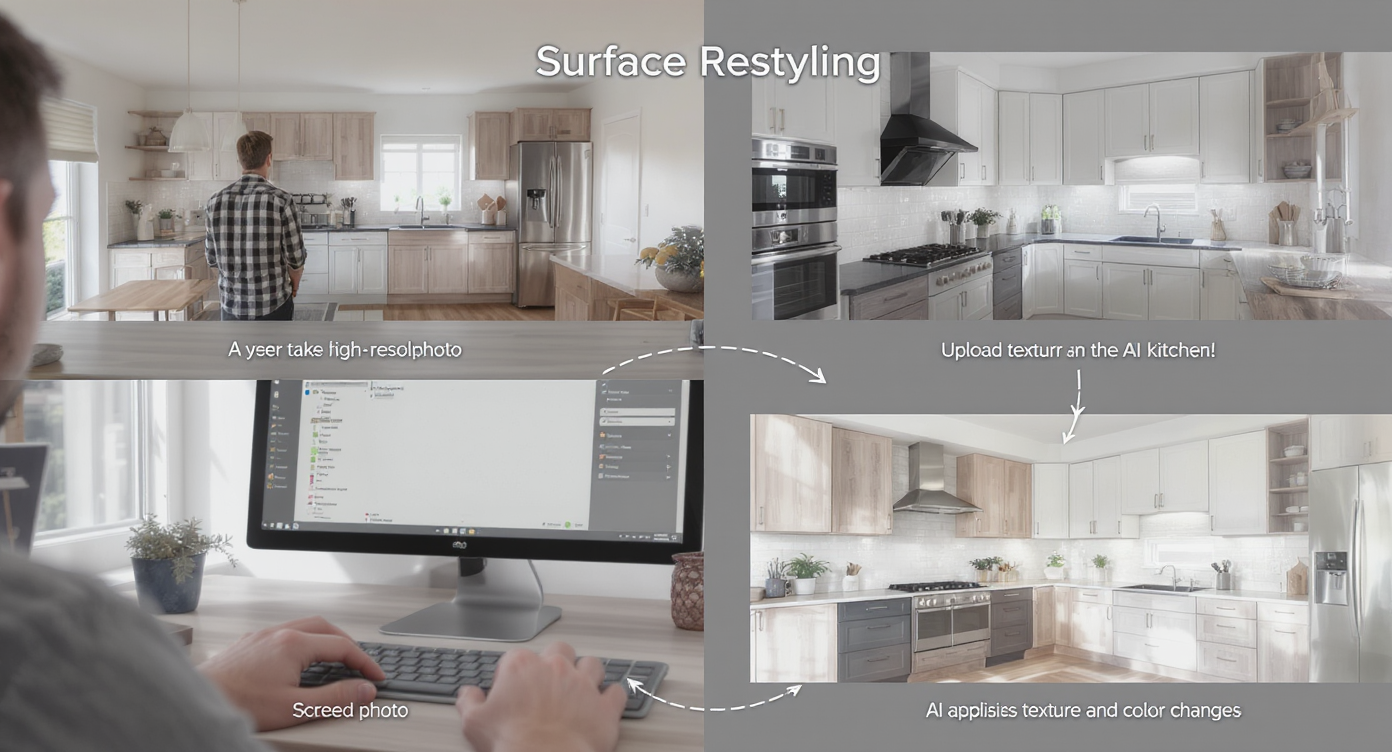
Surface Restyling works with your photos to give realistic kitchen updates in minutes.
Good source photos (ideally 2000–3000 px on the long edge) yield the most convincing AI results.
- Choose the right photo(s). Pick a straight-on or slightly angled shot of the main run of cabinets plus island. Turn on all lights and clear the counters to reduce confusing reflections.
- Upload to ReimagineHome.ai. Create a project and select Surface Restyling as your tool.
- Mask the surfaces you want to test. Counters, cabinet doors, side panels, backsplash tile, and walls are the most common selections.
- Select finishes and colors. Try lighter quartz patterns, softer veining, creamy off-white paint, or blue/green tile. Generate multiple variations at once for quick A/B/C comparison.
- Review and refine. Adjust tone and pattern scale, swap one surface at a time, and re-generate until the balance feels right.
- Export and share. Download high-res images sized for email or proposals—and, if this is for a listing update, share with your agent or contractor for pricing.
Constraint to keep in mind: avoid extreme perspective or heavy shadows; they make edges harder to detect and realism harder to maintain.
Tips and Tricks for More Realistic Results
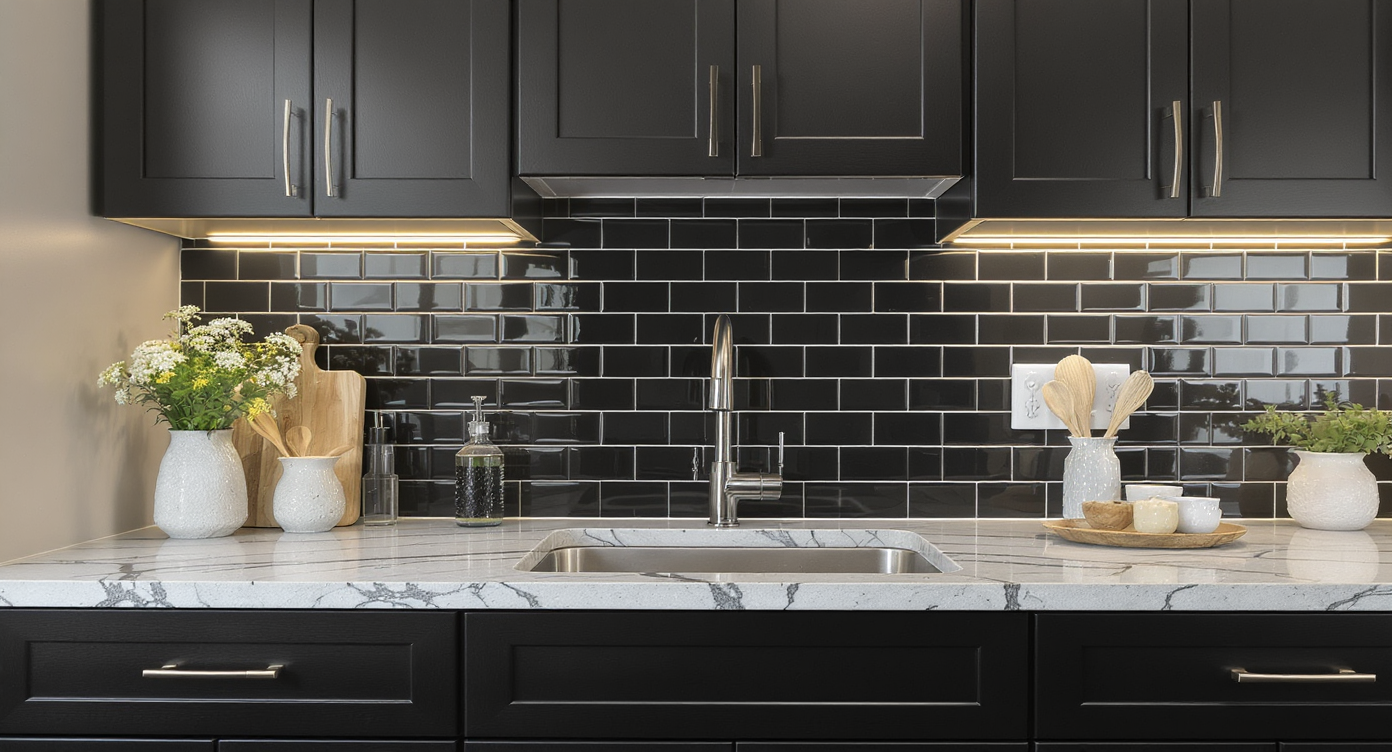
Applying contrast and texture details helps make Surface Restyling edits feel natural and believable.
Even simple changes—like creating contrast between cabinets and counters—make features read better at a glance.
- Balance undertones first. If your cabinets are warm maple, test a light, neutral countertop with subtle veining. Avoid ultra-cool whites that can fight the wood’s warmth.
- Use contrast intentionally. If floors and cabinets are similar, let counters or backsplash introduce contrast (lighter counters, colored tile, or creamy wall paint).
- Quiet the pattern. With busy granite, pick a calmer backsplash or wall color so the eye has a place to rest. If you keep the granite, try a low-variation tile.
- Test full-height backsplash. Extending slab or tile to the cabinets modernizes sightlines instantly—Surface Restyling makes it easy to preview both standard and full-height looks.
- Preview lighting effects. Under-cabinet lighting brightens darker tile; simulate a lighter tile color to see if you can skip the lights for now.
- Coordinate metals, don’t match them perfectly. Warm brass, matte black, or stainless each tell a different story—try a tile color that flatters your chosen hardware.
- Round out the scene. To audition pendants, stools, or a range hood, pair Surface Restyling with ReimagineHome.ai’s Add Anything tool to drop in fixtures and decor, then compare.
Visualization Scenario
Upload your kitchen photo and generate three paths: 1) keep counters, add soft green tile and creamy walls; 2) swap to a light, subtle-vein countertop, keep tile; 3) do both, then add brass hardware and new pendants with Add Anything. Compare and pick the single move with the best payoff.
FAQ
Can AI really recolor cabinets and countertops realistically?
Yes. Surface Restyling maps edges, light, and texture to keep wood grain, stone veining, and grout intact. Try it on your photo with Surface Restyling to see how it handles your exact materials.
How can I digitally repaint walls before buying paint?
Upload a well-lit photo, select the wall areas, and test creamy whites or soft colors. This solves the long-tail query of how to digitally repaint walls before buying paint by letting you preview undertones with your cabinets and floors.
If I change only one thing, should it be counters or cabinets?
Use AI to compare impact first. In many warm-wood kitchens, a lighter, low-variation counter or a modern backsplash creates more lift than painting or replacing cabinets—Surface Restyling shows which reads brighter and more current.
Will AI restyling misrepresent my space?
It’s a planning and visualization tool, not a promise of installed materials. Keep finishes plausible for your budget and layout, and save the images as decision aids for you and your contractor.
What resolution do I need for good results?
Images around 2000–3000 px on the long edge work well. Avoid heavy shadows or extreme angles; straight-on shots yield the most accurate masks.
Visualize Your Next Kitchen Move Before You Commit
Choosing one big move is easier when you can see the whole picture first.
Maybe it’s a lighter, quieter countertop that lifts the room. Maybe it’s a modern, colored backsplash that makes the warm cabinets feel fresh. Or maybe paint and hardware buy you another five years without touching stone or wood. With Surface Restyling, you’re not guessing—you’re rehearsing the finished kitchen, then buying the version you already know you love.
Start with your own photo, try three directions, and decide with confidence using ReimagineHome.ai’s Surface Restyling. If you want to experiment beyond surfaces, open a second pass and add pendants, stools, or a hood in minutes.









.svg)


.png)